Category Archives: Governance

M365 Twin Cities Logo

M365 Twin Cities – Conference Event

M365 Twin Cities is the evolution of SharePoint Saturday Twin Cities and is a Community Days event. As a part of Community Days, we’re also aligned with MGCI – Microsoft’s Global Community Initiative.

We cover topics from M365, Copilot, Power Platform and anything related or adjacent to M365 like Azure, governance, security, and a lot more. Our audience also falls across many personas: Users, decision makers, power users, makers, developers, administrators, and others.

As we’re currently preparing for our 2026 event, let’s recap our 2025 event a bit.

2025 Event By the Numbers

Our 2025 event was on Friday September 19, 2025. We had 705 registrations prior to the event with a number of folks that registered at the event. All in all, we had about 380 folks on site (that’s a pretty normal ratio against registrations). The attendee numbers were a good trend from 2024 where we had about 250 folks – steadily growing post-pandemic.

Registration – Ready to go!

The ‘vibe’ was overwhelmingly positive. The higher attendance was immediately obvious and contributed to the higher energy in the room from both attendees and sponsors. As our community usually does, they hit up the sponsors early – even before our opening info session. The coffee and donuts may have helped as well.

We had 31 sessions with 33 speakers across 8 rooms – with the largest session attendance topping out around 110 people! Learning was had by all.

Sponsorships post-pandemic were, and still are, a challenge. The market has changed, the economy has changed, and how sponsors engage with customers has changed. Where we had a little budgetary buffer in the past (pre-pandemic), events are tough to fully fund. We’re hopeful that rising attendee numbers will help bring sponsors back. Our 2025 event had 8 wonderful and fully engaged sponsors.

Locally, we’ve got a really strong Microsoft community – a healthy SharePoint history and M365 adoption across businesses, government, and other organizations. While this is mostly a good thing, it also drives a bit of competition with other groups and events within our community. While this is great for attendees, it’s tough on sponsors and event producers. There’s only so much funding to go around and tight budgets can impact community-driven (and funded) events like ours.

Historically we’ve had 1-2 events a year with 2 events most years. Coming back post-pandemic we’ve tended towards a single event – *and* moved to Fridays – in an effort to make sponsorship funding more reasonable for our supporting vendors.

Next up – Fall Event

Our 2026 event will be held on Friday September 18, 2026. Registration is open. We’re working on session selection and aim to have the schedule up in a few weeks.

Companion apps screenshots

M365 Companion Apps – Coming to Windows 11 Machines Near You

Or not… But it’s on by default (of course).

If you follow the Message Center – administrative updates for your M365 tenant but available to anyone really – you may have seen a recent announcement about “NEW Microsoft 365 companion apps…”. There’s a lot to unpack here. First detail that caught my attention however was that they are intending to *automatically* install software on your PC – not a shock, but also something I’m not generally a fan of without more information and prior planning – hence this heads-up for folks.

The Roadmap ID for this change isn’t useful at all. But the Message Center post is well done with lots of details, references, and highlights including how to opt-out of automatic installation (without having to use PowerShell!).

So, what’s Microsoft up to this time? Why the push of client-side apps? What aren’t they getting with their cloud-based solutions? Again, there’s lots to unpack but the Message Center highlights give a good overview.

What’s Installed

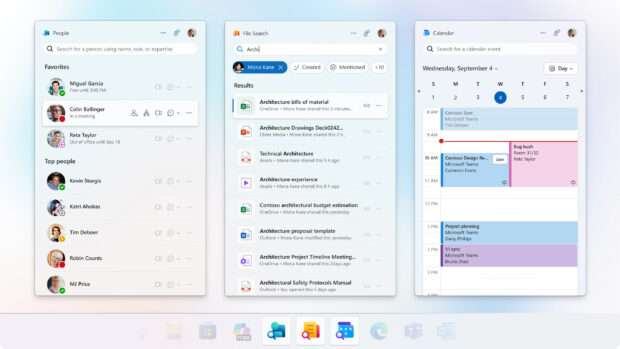
There are three apps installed: People, File Search, and Calendar. These can be installed manually – as a set, not individually – via the Microsoft 365 companion app installer.

People and File Search are unique enough to find and launch easily. Be aware however that the new Calendar companion app can be confused with the existing (New Outlook) Calendar app.

The old app/icon:

Old / Outlook Calendar

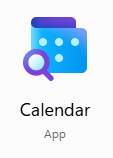
The new companion app/icon:

New Calendar Companion

Functionality of the apps will vary depending on other licensing and configuration, including Copilot in your environment and tenant. An overview of the companion apps can be found here: Microsoft 365 companions apps overview – Microsoft 365 Apps | Microsoft Learn

More to come…

References

Notes / News / Thoughts

Visualize the comparison or battle between Microsoft's Power Platform and Pro-dev coded customization

Power Apps … *One* Option for Extending M365

This note is in response to Andrew Connell and Julie Turner’s YouTube video – “Ep. 009 | Microsoft 365 Extensibility: Power Platform isn’t the Only Option” – on their “Code. Deploy. Go Live.” YouTube channel.

The premise of their episode title and some of the take-aways that struck Andrew and Julie were:

  • “Power Platform is still king” – Julie’s observation while working the Ask the Experts table/panel and seeing the line – the demand – for Power Platform Q&A.
  • “The number of people that think that the way to build something custom on M365 – that your only option is Power Platform.” – Andrew’s observation after Seattle’s TechCon event.

I don’t necessarily disagree with these observations. Many folks that have dug into the Power Platform are invested… Power Apps and Power Automate have become their “hammer”, their tools of choice, their platform of preference and bias – both the community and marketing Microsoft has built around these tools does little to discourage that thinking.

Awareness

I don’t know if folks aren’t aware of other methods to customize M365, or if they simply aren’t driven to find or investigate other options. For many of these folks – folks in the Power Platform’s target audience – “development”, “pro-code”, etc. is a no-go. Many are business users that have little interest in becoming developers and shy away from conversations about actual coding.

As for me, while I focus on a range between out-of-box capabilities for power users of M365 through Power Apps makers, I try to include the full range of options available for folks in the conversation: from out of box capabilities, to tools like Power Platform that extend traditional platform capabilities, to pro-dev customizations. 3rd party products also figure in the mix and also change at a rate challenging to keep up with.

Power Platform is accessible

I’m not sure “accessible” is the right word… but for many M365 users the step up to Power Apps and Power Automate is a lot more approachable, achievable, reachable, and viable than stepping into the “pro-dev” development world. Mostly from a skills perspective. They can start experimenting with *some* Power Apps and Flows with very little effort and see results. Now, I understand that getting bigger results with Power Platform requires an investment of time and effort to do more advanced things. If someone were to compare efforts at becoming a high-level Power App maker with the effort to become an effective pro-developer resource… I’m not sure what that might look like. I am confident that most Power Apps folks would still choose Power Apps. Digging into the reasons for that would be interesting…

For a lot of folks, there’s a bit of disillusionment with IT and development. Developers are almost always overworked and have huge backlogs of work (new or maintenance) to keep them busy – making new requests hard to deliver on a timely basis. With that, lots of folks see opportunity with Power Apps as a way to get what they need from a business standpoint more quickly and easily.

Yes, those of us on the IT side know choosing that path comes with a price. But folks trying to get their jobs done will still do it and deal with the “other stuff” later. Often with the blessing of their (non-IT) managers.

Some organizations don’t have developers available in-house, so they need to engage with consultants – which cost money. These (usually) small to medium (“SMB”) organizations often resort to seeing how much they can get done with the tools and licensing they have available – which leads them to the Power Platform.

“Not Enterprise-Ready”

Most of the folks I work with are at the intro-level of Power Apps, where I’m making folks aware of what’s available within existing M365 licensing. While I’ve seen some larger implementations, I don’t (IMO) have enough experience there to say where the Power Platform may falter in enterprise-level implementations – specifically when it comes to the limitations of the platforms.

What I do know is that there is plenty of room for error in governance – both in planning and implementation. Most every pro-dev shop will enforce some level of application lifecycle management – or “ALM”. In short, this means they develop in an environment separate from the production data and functionality. While there are ways to implement ALM features with the Power Platform, it would be interesting to see stats on how many orgs that use Power Apps and flows are implementing ALM. Without ALM, they’re introducing risk to their environments. Risk to data. Risk to processes that can grow into business-critical levels. And more.

There are more Power Platform for M365 is “not ready” topics, but ALM is one of them.
I’d quickly add data to that list… where you choose to manage your data is important as solutions grow. Microsoft Lists and SharePoint Lists (the same thing) are wonderful tools for business users but have limitations and cede to Dataverse or SQL as they need to scale over time.

Final Thoughts… for now

*Some* of the perceptions above are biased by the conference’s target audience. I think we’ve been seeing fewer Developer attendees and more Power Platform folks.

Power Apps have their place in the maker/development/customization space. What role it plays, where triggers exist for review, migration, or other will vary from organization to organization. In an ideal world Power Platform tools are introduced to an environment in partnership with Pro-devs. ALM for Power Apps and flows are modeled on Pro-dev processes, and more.

I think Power Apps are a great way to extend List functionality – both with forms and data presentation.

I think it’d be great to see some Pro-Dev comparisons to each of the tools in the Power Platform space. Come up with some common scenarios where Power Apps, Flows, BI or other are implemented and discuss the efforts and capabilities of either approach…

It’s also important to get the “there are multiple approaches to customizations” conversation to decision makers – often the folks NOT at conferences. (generalization, not the rule…)

There are a lot of threads here that could be pulled… Lots to talk about. And lots of “it depends”. 🙂

… and we haven’t even touched how/where the D365 community differs from the M365 community and Power Platform’s piece of that conversation…

Features Lost in Complexity

“Complex and feature-rich tools…”

It’s a phrase I saw in a LinkedIn article not long ago that resonated with me as a concise way to convey two connected issues that we see users and organizations facing with enterprise software these days.

  • Product complexity – Leads to users not finding functionality they want intuitively in the interface.
  • Knowledge gaps – The larger the feature portfolio, the tougher it is for users to master the skills needed for their role or specific activities.

Now, complex and feature-rich tools are a good thing, right? They’re filled with so much promise. As new features are added and software grows, at some point these products can get more difficult for users to use – and more challenging to meet those ROI expectations. Not to mention the added twist we have now with cloud-based applications and the speed at which they change. It’s a moving target to get up to speed and stay up to date with features and our ability to leverage them.

While the article linked above talked about both business value and usage with HubSpot, the issues absolutely apply to Microsoft’s M365, Power Platform, and other enterprise platforms like Workday, ServiceNow, etc. as well. In-house custom applications aren’t immune either. In fact, custom solutions might be more challenged because they don’t have a level of support, documentation, or training that commercial products (should) have.

To make the problem worse, the biggest group of users are typically business users whose main priority isn’t learning software but is actually running the business.

“Does the product do this?”

The problems listed above are obviously related. As features are added, removed, or changed – training materials and resources need to keep up and users need time to consume them. But the changes keep coming, so it’s a never-ending effort. You end up with users at all levels and roles not aware of capabilities that could be impactful for them.

How do you address a large and complex set of features?
Maintain, or subscribe to, a definitive list of platform features, activities, skills, and capabilities. Sounds like it should be easy, but it’s usually not. Between the size and complexity of platforms these days and the rate of change, it’s difficult for folks to know what’s available, what’s not, what’s changing, etc.

How do you address knowledge gaps? How do users know what they don’t know?

  • Use assessments – *not* exams – to figure out where the gaps are. It’s not a pass/fail situation. It’s a non-punitive metric of what you have awareness of and what you don’t so you can put focus on the gaps when and if you need to.
  • Provide resources, training, champions, examples, and all the traditional materials for users to skill up when, where, and how they prefer to learn.

So, we do our best. If we have a platform team (or whatever it’s called in your organization) they can be responsible – as their job – for knowing the tool inside and out and understanding how the organization leverages the tool. They either create or work with a training department to create or source training and reference material. We utilize change management policies to deliver timely communication about changes coming, and the people/roles that are affected.

If you don’t have a platform team, there might be an IT generalist on the tech side or user “champions” on the business side that do their best to keep up with features and capabilities.

Prevention – Governance

Training, resources, change management… you name it. Get ahead of knowledge gaps by preparing materials and training sessions before introducing tools – when you can. But there’s still work to do after deployment.

Build and maintain training and other resources so you can leverage them throughout the lifecycle of the product or application. Maintaining resources is key for new users to an organization and folks that skill-up over time.

No plan, implementation, or organization is perfect though. There will always be gaps. There will always be new folks coming to the organization or to new roles and positions. The best we can do is set the environment and systems up as best we can with the staff, tools, and funding we have available.

3rd party tools and services might also be part of the mix. That list of features, skills, etc. mentioned above? Let someone else manage the definitive list. Focus your organization on the training materials needed for your situation. There are also tools like VisualSP that enable in-app, just in time learning for users. There are options. Find what works for your users.

Artificial Intelligence

AI is certainly going to help with issues like this as well. As product owners add AI chat interfaces, users will have more ways to search or ask for what they are looking for and have better results than previous “help” interfaces were able to support.

Set users up for success

This is the same message product owners, consultants, trainers, etc. have been preaching for years. Establish a location for users (not just “end users” but all roles) can come to find the info they need within your org. It might be called a “Center of Excellence”. It might be something you build, or a collection of tools, services, etc. you cobble together. You can start with common community-built knowledge, links, etc. and then curate or build organizational-specific knowledge, experiences, learning links, and more.

Finally, build momentum. With more folks using the software and platforms successfully, there will be more opportunities to share what they’re doing and how they’re doing it. Raise that collective awareness and skill level.

white printer paper

Delivering More Usable Power Apps

When folks start digging in with Power Apps (at least in my experience) they want to accomplish something business-related – trying to add functionality that was missing in their daily activity, their processes, their interactions with others, etc. Power Apps is great at that.

What early Power Apps makers (non-IT) don’t usually consider at first is branding, design, or accessibility. They build something that makes sense for them alone. The scope is one person or one team – which is completely fine – rather than a wider organizational view. For many projects that might be the end of it: “Boom, it works. Process improved”.

In some cases, those relatively small, “home-grown”, simple solutions gain a broader adoption (it gets more popular than originally intended…) – which can bring with it additional considerations… One of those “now more important” topics is UX/design.

As the size and capabilities of an organization increase, app makers often have more policies to follow and resources available. Branding standards and corporate color templates seem to be the first elements that get added. Designers are part the mix. As more resources become available within the org, there can be a variety of UX/design roles that include researchers, designers, and more. These folks can bring creativity and experience to the table that notably improve the look, feel, and functionality of apps.

If they are available in your organization, learn what resources are available and when to get these folks involved.

Investments in design and UX can potentially yield solutions with higher usability and user adoption rates. The same usability goals and techniques that apply to Power Apps also work with other apps and interfaces – this includes custom development as well as dashboards and cards in Teams and Power BI…

In an organization with established development ecosystem, processes and standards are likely being leveraged. Folks know what teams and resources are available. The quickly growing non-IT Power Platform maker population however might not be aware of these resources if they’re not looped-in with the established development org.
As a Power Apps enabled organization, strive to:

  • Learn the differences between the roles: UX, UI, designers (and others)
  • Understand the value UX folks bring to app development
  • Learn when to engage, how to best engage, and what to expect when engaging UX folks

With the popularity of Microsoft’s Power Platform and Power Apps, we’ve added lots of new folks to the maker community. These makers have new (or new to them) tools that enable them to build impactful business solutions but usually don’t have experience satisfying user experience needs of their users. The more you can integrate the UX expertise that’s available out there, the better the organization will be served by these dynamic app-generating efforts.

Note: This quick post was intended to make PA folks aware of UX resources… It’s a far cry from digging in to all the details, benefits, nuances, etc. that you’ll run into if you have the opportunity to work with that crowd. There can be a lot, but there’s also a lot of potential benefit for your users and more. Let me know what your experience is!

References:

More Coming… (Getting input from UX folks…)

Hey UX experts, let me know what other references and links I should add here!

  • What are some good resources for understanding the different roles?
  • What are good resources for understanding why, when and how to effectively engage the different roles?
  • Are there research articles that support effectiveness of UX when applied to the dev process?
people throwing pins

YOU get Copilot and YOU get Copilot…!

There was much rejoicing. Microsoft recently announced expanded availability of Copilot to individuals and organizations. Pretty good news that many of us will be digging into.

Aside from the technical topics (how to use it, how to enable it, etc.), there are logistical reasons this new announcement is good for individuals and orgs. With the new licensing and availability, we can jump in with a more measured approach. We can move forward with the “crawl, walk, run” approach we’ve adopted rather than committing funding or confusing users before we’re ready to deploy new capabilities.

First of all, individuals are now enabled to sign up and start using Copilot via several different options immediately. This gives self-motivated folks head starts to learn what they want and need to adapt in a rapidly changing environment. They don’t need to wait for their organization to sign up, they can use personal accounts (yes, with additional cost) to get the same functionality.

For small to medium sized companies, Copilot is now available without the 300-seat minimum, which was really irritating for the SMB crowd as it left them out in the cold while larger companies could implement more easily. For large companies, they can now implement on a more reasonable adoption path – starting with fewer folks to dig in and learn, figure out best practices, create or acquire learning paths and content, and more before committing significant funding to larger employee deployment and adoption.

As with any new technology, the best approach is a balanced one – even when product marketing is screaming to go, go, go!

Good luck!

M365 Message Center and Planner

I want to highlight a feature that Microsoft added to the M365 Admin Center, specifically to Message Center, and highlight why it’s important for folks – NOT just administrators – to be aware of.

I missed the announcement when this feature was released, but heard about it when listening to one of the M365Voice podcasts where Sarah mentioned it.

Overview

If you take nothing else away from this blog post, just know this:

Message Center syncs with Microsoft Planner.

This feature should be considered for a part of your M365 governance plan. It’s one of those examples where work is being done for you – work that should be setting your change management process up for success. That’s honestly the biggest reason I’m writing this. The feature isn’t getting anywhere near the exposure that it should.

Anyone that gets Message Center email digests and/or logs into the Admin Center to check the Message Center should be looking at this. Anyone that wants to keep up to date with system and service outages, with upcoming features, with feature deprecations, with feature and service updates and more should take a look.

Want to get to the details quickly? Use the links in the References section below to Microsoft’s materials.

Why

So, why is this feature so important? The short answer is “governance”. The longer explanation covers a lot of ground and gets into topics like change management. The content delivered via the Message Center is critical to organizations’ ability to manage platforms and services that orgs have come to rely on. Keeping up with those platforms is getting increasingly difficult in a world of cloud-based services where features are changing at a rate that’s challenging to keep current with. The volume of information coming through is also tough to keep up with – even Microsoft calls this out when announcing the sync feature as a way to help mitigate the issue.

Access to the Message Center has been another challenge. While updates have been made by the way of new roles and permissions, the Message Center has historically been the realm of administrators, which somewhat slowed or restricted the flow of content to everyone that needed it.

Finally, targeting or aligning Message Center content with the appropriate audience has also been a challenge both from the content creator side and from the content consumer side. When new content is released, getting it in the hands of the right folks can be critically important. Historically, responsibility for this has fallen on administrators – the folks most likely to be monitoring Message Center. While admins are certainly capable of doing this job, they’re 1) usually more than busy with their own responsibilities and 2) the “who should know what” function should really be dictated by governance planning and/or someone with the high-level vision of what the org is doing with the platforms and services they’re using.

Extra: The “crawl” investment to get this feature working is very low. It’s super easy to get the basics configured and up and running. Lots of bang for your buck.

Walk-through

While the “how” of a blog post is usually where the guts of the article are found, in this case the feature is extremely simple. The “whys” and “what’s next” are really where the interesting stuff is. But let’s step through it anyhow.

  1. Inside of Admin Center, navigate to the Message Center
    Admin (show all) –> Health –> Message Center
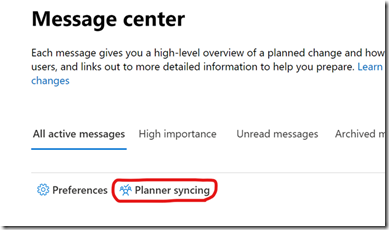
  2. Click “Planner syncing”
    image
  3. Click “Set up syncing”
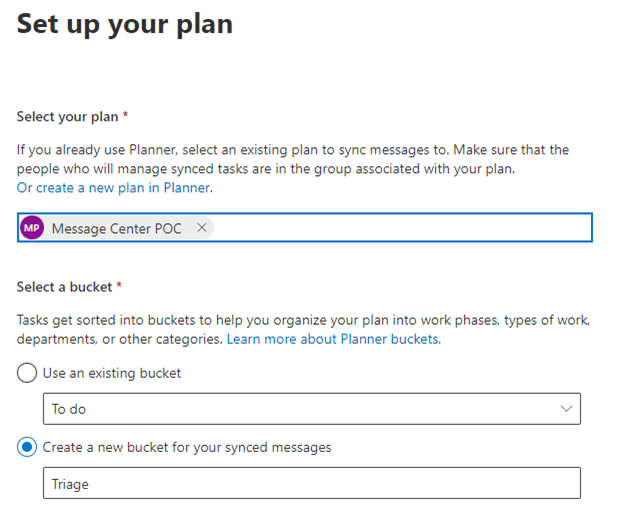
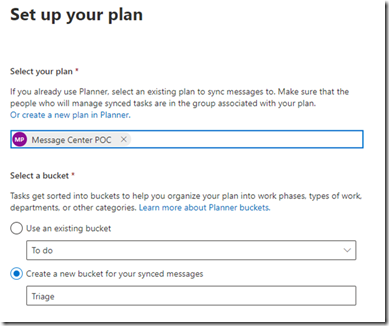
  4. Set up your plan:
    Select an existing plan or create a new Microsoft Planner plan (will open a new browser tab) by entering a name and selecting a privacy level.
    Within the plan, create a bucket if needed, and select the bucket that Message Center content will be synced with. A “To Do” bucket is created by default with new plans. Best practices are TBD yet, but I think something like “Inbox” or “Triage” seems like a good place to start and indicates action needs to be taken on items that show up in the bucket. 
    image
  5. Choose messages to sync:
    1. All updates vs. major updates
    2. Select the types of messages
    3. Select the products or services – This is where most organizations will likely do a little filtering in terms of which products the organization is using or not using.
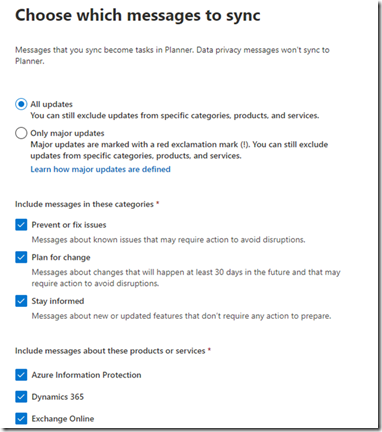
      image
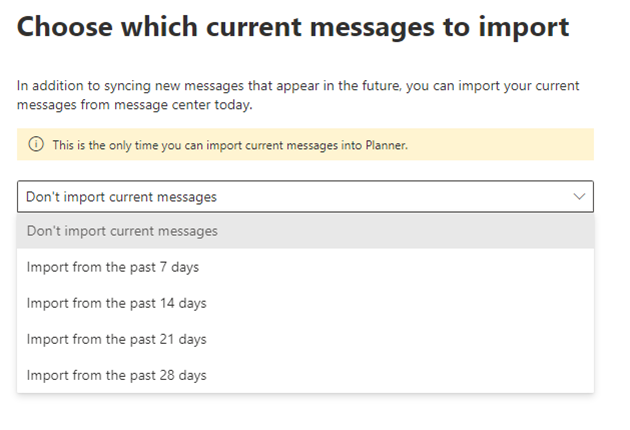
  6. Choose which current messages to import:
    The sync does a one-time pull from existing messages in Message Center. Users can select 0-4 weeks worth of content in week increments. This is nice for bringing recent items in, or to just prove the sync and filters are working.
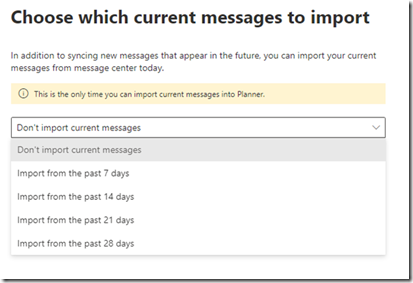
    image
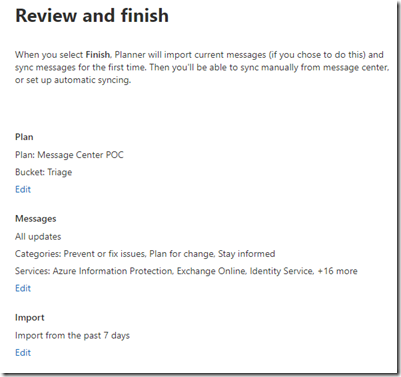
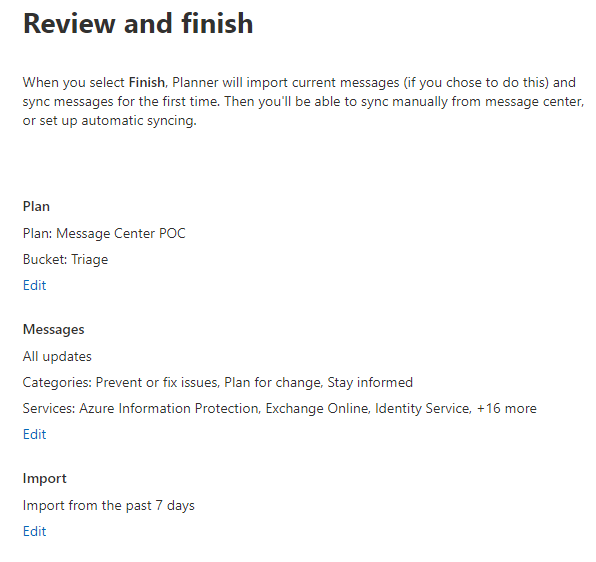
  7. Review your selections:
    image
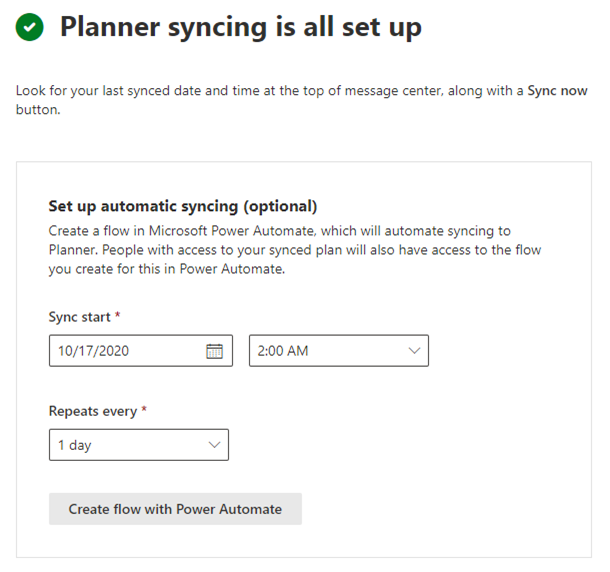
  8. At this point, the connection is set up. The automation is not yet, but is prompted next. Selecting to automate will create a flow using Power Automate.
    Note: Sync start date defaults to the current date. If you’d like to select an earlier time in the day, you’ll need to select a future date (tomorrow) to select an earlier time, like something in the middle of the night. Default schedule is once a day but you can schedule it for syncing further apart.
    1. Select “Create flow with Power Automate”
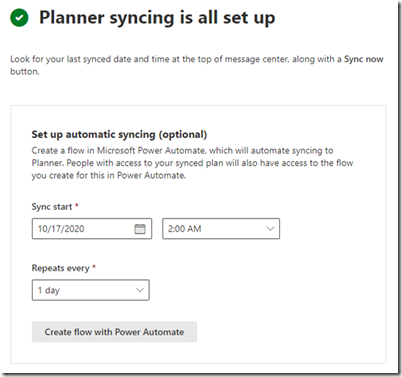
      image
    2. You may also need to create a connection before creating the flow. This is where you have an opportunity to select the account being used to connect to Message Center. Check the best practices in your org for setting up connections.
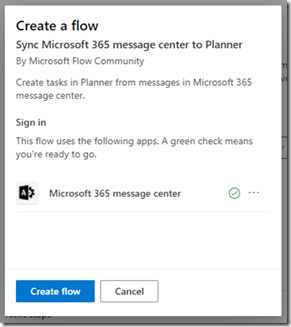
      image
  9. That’s it!!
    Note: Message Center shows the last sync as well as a link to Sync now in the upper right of the screen.

    image
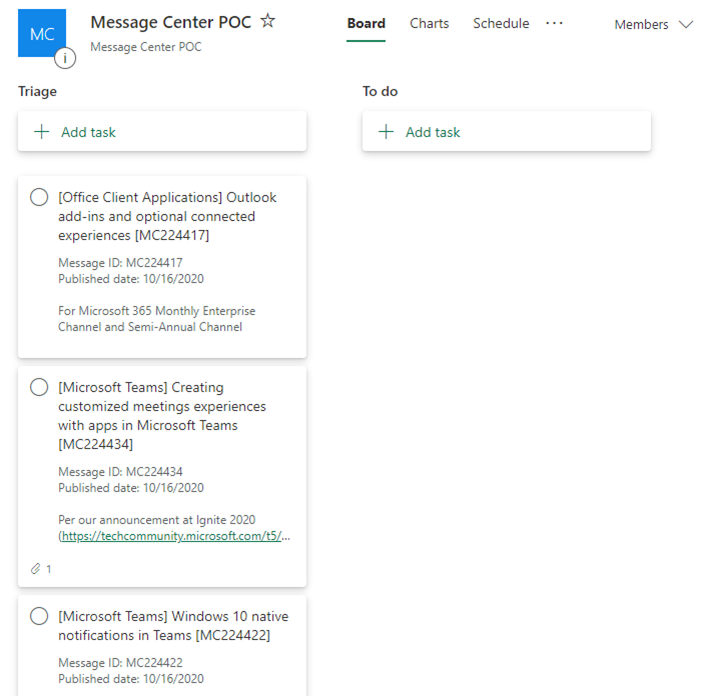
  10. If you chose to sync existing messages, check your Planner plan to see if they’ve come across.
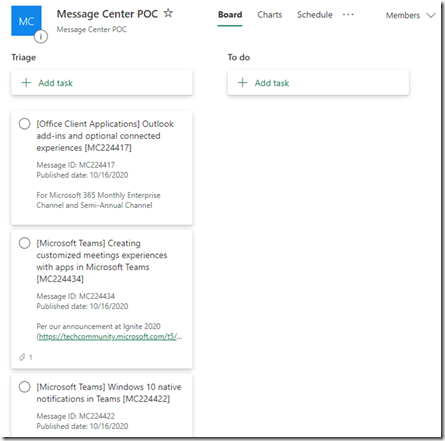
    image

Editable and Cancellable

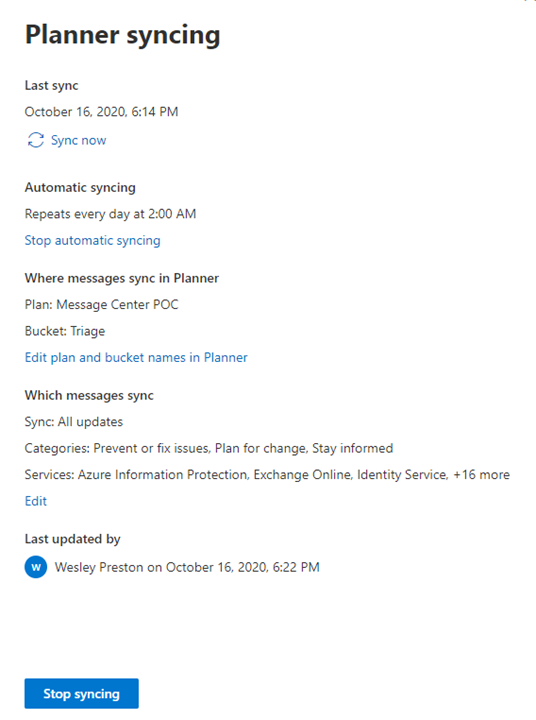
Once the sync has been set up it can still be edited and cancelled. Clicking on the same “Planner Syncing” link will open the sync details information where settings can be updated and the sync can be cancelled.
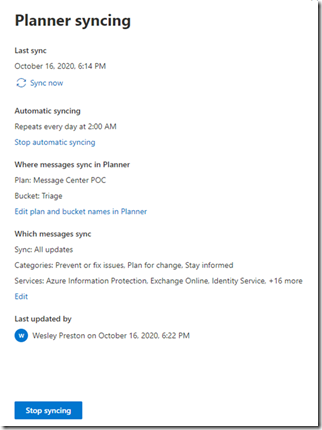
image

Cancelling the sync will even remove the flow if one was created (nice touch!).

Tools Governance

The sync process involves Microsoft Planner at a minimum, and likely also uses Power Automate if you opted for the automatic sync. If those tools were already being used in your organization there are likely already policies, permissions, and practices to consider. If either tool is new to your org, you’ll need to take whatever steps are needed to ensure they are managed properly within the policies of your org.

The Roles of Roles

A topic often overlooked is roles from the perspective of technical platforms and services. Now, “roles” and “jobs” can be easily confused or thought of as the same thing. Sometimes they are, but often not. In many cases, a person in one job has many roles. It is important though to understand roles for platforms and services. A single person might be a user for one tool, a champion for another, or an owner for something else. Understanding who does what or who’s responsible for something is critical to determine what information – say, Message Center content – needs to get into whose hands to fulfill their role responsibilities the best they can.

It takes time and deliberate effort by an organization to identify and define tech-specific roles and to align policies and procedures around them. Performance and training are obvious reasons to make the investment, but understanding which audience needs to see what content related to change management issues is another legit reason, as is platform ROI improvement.

A topic for another time… Let me know if this is something you’re interested in as I’m working on a service offering around technical platforms, roles, and skills.

Once the sync from Message Center to Planner is set up, one hurdle has been bypassed and organizations have a lot more flexibility and options for getting the right information in the right persons’ hands – significantly improving the org’s ability to deliver for the business.

What’s Next

The initial sync configuration covered above is the “crawl” approach – getting the connection made between Message Center and Planner – making the content immediately more accessible. From there, “walk” and “run” scenarios can take several directions – depending on your organization’s change management practices, the tools available, the culture within the org, and more. A few potential areas are listed below:  

Change Management

The Message Center content is one input into a change management process in the organization – a process to “prepare, support, and help individuals, teams, and organizations in making organizational change.” – whether or not you’ve considered a formal change management process. If the org already has an established process, someone will need to figure out how this content works into the bigger picture. If you don’t have a process, the new plan could be the foundation of a new process.

Microsoft Planner

If Planner is already being used, the powers that be will want to consider which plan to use and what rules around that plan need to be implemented. There may be best practices for setting up users, which buckets to create, any automation options that can be used, etc. In the video linked below Microsoft suggests a few different bucket approaches that can be used.

Microsoft Teams

If Teams is being used in your organization (more and more likely) then you may want to consider integrating your Message Center plan one or more Teams to facilitate discussions, tasks, and more related to Message Center content, change management, etc.

Power Automate

If you’ve scheduled the sync for regular downloads, there is already a flow set up through Power Automate. If Power Automate is already being used at  your organization someone will want to make sure the flow conforms to whatever policies are in place. If Power Automate is new to the org someone will want to review its usage and potentially walk through whatever is required to add a new technology.

Let me know what you’d like to hear more about!

References