M365 Twin Cities Fall 2024 – By the Numbers
Our most recent M365 Twin Cities event was on Friday September 6th, 2024.
On what was our first Friday event (all previous events have been on Saturdays – as part of the “SharePoint Saturday” tradition), we had:
- 463 folks registered for the event
- 250+ of those were NEW to us
- We had approximately 260 folks on site.
- 20 dozen donuts
- 20 boxes of coffee
- 32 salads, 81 pizzas and cheese bread consumed (once they finally arrived…)
- 275 cans of soda
- 8 rooms with a total of 29 sessions (11 so far available to review)
- 32 speakers
- 4 Microsoft folks
- 1 Pastor
- A bunch of current and former Microsoft MVPs
- 3 Canadians (that admitted it…)
- 1 round table discussion session
- 3 sponsored sessions
- 7 awesome sponsors – Check them out!
- 2 speakers suffered minor burns from sticky buns… (They’re OK)
- 3 LEGO sets were given away at the end of the day – 2 Groots and a Concorde!
- Session feedback is still coming in, so we’ll see how that goes. (Keep them coming!)
- 1 schedule change after printing.
Not bad.
We had a few bumps along the way, but overall, the Friday event went over very well. Lots of great conversations were had, networking was done, and folks walked away with a bit more knowledge than they had before.
Check in with Community Days for events in your area and keep up with us on our site and social accounts for updates, meetups, and more.

Power Apps – Copilot Prompts to add Forms and Controls (August 2024) – Deprecated
Originally posted August 2024
Updated September 2025
EDIT: Copilot in-app editing was deprecated and removed January 2026. 🙁
Have you tried out Copilot (Preview) in Power Apps yet? Here’s a quick example of what you can do and try.
Note: I put the date in the title because this feature is currently in preview, is changing a *lot*, and will likely give you different results as time goes on.
My last post talked about creating an About screen in a Power App. It’s a pretty straightforward and beginner-level activity. Is it something we can automate or create a prompt for? Here’s what I experienced:
First, we’re in the Power Apps interface and using the Copilot icon in the upper right part of the screen.

Copilot opens on the right side of the screen and prompts are entered in the text window at the bottom. Click the arrow to submit the prompt.
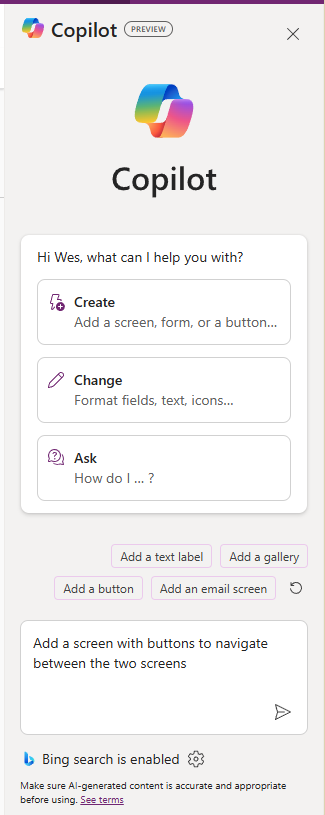
Now, what’s pretty cool is that Copilot goes ahead and tries to implement what you asked for. The output makes the changes to your app then reports on changes made with some explanations of its actions. Pretty slick. It also gives you the option to undo the changes that it made.
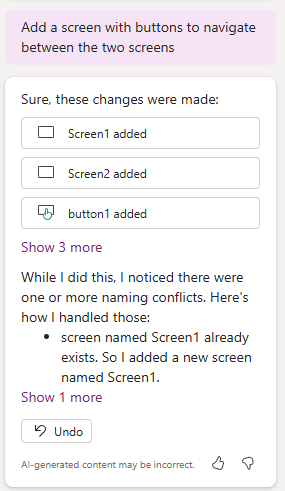
My attempt took 5 tries. I chose to undo each attempt until I got the one I wanted. The closest I got at the time (#5 below) was:
Add an “About” button to the bottom of FormScreen1 that navigates to a new screen with a “Back” button near the top of the form that navigates back to FormScreen1
The progression looked something like this:
| Prompt | Outcome notes |
| 1. Add a screen with buttons to navigate between the two screens | Added two new screens instead of adding only one. |
| 2. Add a button to FormScreen1 that navigates to a new screen with a button that navigates back to FormScreen1 | Better… |
| 3. Add a button named “About” to the bottom of FormScreen1 that navigates to a new screen with a button named “Back” to the top of the form that navigates back to FormScreen1 | Whoops, it named the buttons… didn’t change the text. I suppose this is good to know for better component creation… |
| 4. Add a button with Text “About” to the bottom of FormScreen1 that navigates to a new screen with a button with Text “Back” near the top of the form that navigates back to FormScreen1 | Copilot didn’t like this. |
| 5. Add an “About” button to the bottom of FormScreen1 that navigates to a new screen with a “Back” button near the top of the form that navigates back to FormScreen1 | Pretty close. It got most of the basics though left the About button at the top. |
| 6. Add an “About” button near the bottom of FormScreen1 that navigates to a new screen with a “Back” button near the top of the form that navigates back to FormScreen1 | (Updated post – added this row) Got it. Changed one word – “to” to “near” to get the button to the bottom of the original form. |
| 7. (Update 9/3/25) On FormScreen1, add an “About” button near the bottom right corner that navigates to a new screen with a “Back” button near the top of the form that navigates back to FormScreen1 | Previous version stopped placing “About” button in the right location. Got more specific. |
Now, why would we want to do work this way? It feels a bit like scripting to me. If I can find the right prompt, I can save it and use it in multiple apps or share it with others to get consistent results. The assumption here is that Copilot’s actions will settle down over time and be consistent. While in preview and frankly in relatively early development the outcomes will likely vary somewhat.
Random Note
Does anyone else think creating prompts feels like text-based adventure games from the 1980s? Two-word commands with a verb and a noun. Keep trying until you get the action you’re looking for. 😛
#CranstonManor
Edit / Update
Added row 6 to the table with a slightly better prompt.

List Form About Page with Power Apps
One of the easiest customizations folks can do to List forms is add a second page to their form. If nothing else, it can be used for governance purposes to let users know how to use the form, which department owns the form or who to contact with questions. It can provide specifics on fields or set expectations on wait times or show previous requests by the current user. Lots of opportunities.
We’ve had the Power Apps “customize form” option for a few years now. And while the custom form is a *special* app in some ways (the app is locked to the list, it doesn’t show up in the normal Power Apps interface, etc.) it IS a fully functioning Power App in that it can connect to more than one data source, it can have more than one form, and more.
In its simplest form 😉 we add a blank form.
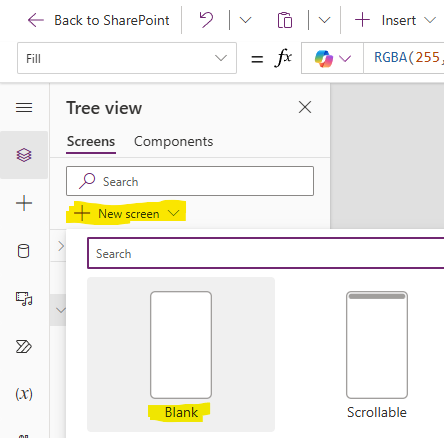
Add an “About” button to the original form and add the Navigate formula to the new form.

Add a “Back” button to the new form and add a Navigate formula to the original form.

Fill the form with text and other controls.
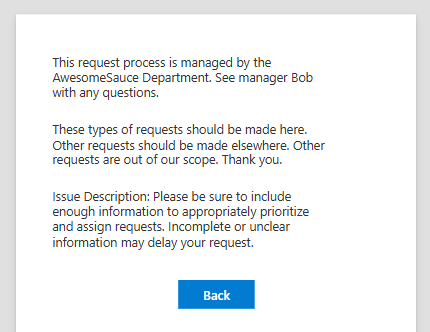
Of course, if you want to get more fancy you can add more complicated capabilities as well. If the form is for a request list, you could show your (current user’s) open or previous requests – maybe let them copy fields from previous submissions. You could show how many open requests are out there and determine estimates on how long it’ll be to get to your request…
We’ve been customizing and extending List forms for a long time. The core has always been list data, which makes perfect sense. But we’ve also been limited that entire time to the list, the form, the page, the site, etc. Power Apps breaks those limitations down a bit and it may be a challenge for some to change the mindset many of us have been in for so long.
Update
End User Sessions at M365 Twin Cities
OK, I just finished rambling about content for end users at technical conferences. There’s a lot of great stuff out there and here’s a sampling of what we’ve got to offer end users on Friday September 6, 2024 at the latest M365 Twin Cities event in Minnesota:
- Introducing Microsoft 365 Copilot – with Michelle Gilbert
Michelle is a local Microsoft resource so you’ll be getting the latest info straight from the source. Are you using Copilot? Do you know what it is? Should you? This’ll be a great opportunity to get the overview you need on what’s available now, what’s coming, and why you should care about AI in the Microsoft space. - Calendars! Calendars! Calendars! – with Tamara Bredemus
If you’ve never attended a session by Tamara, that alone should be enough to check this out – she’s awesome. But the topic is a hot one with so many options and folks not knowing which to use. Check this one out. - Integrating Forms with Teams for Real-time Responses – with Brian Alderman
Between Microsoft’s launch of Teams and the explosion of usage during the pandemic, there are a LOT of Teams users within every organization. Teams keeps adding features and this is a solid one you should be aware of. Check it out. - Microsoft Lists: the productivity game changer for everyday people – with Heidi Jordon
Lists have been around for over 20 years as a structured way to manage data – data we’ve been trying to get you to get off those post-it notes and out of Excel files. Heidi is going to go through a bunch of use cases so you can see what we’ve been talking about and leave you wanting to dig into Lists when you’re back at work. - 20 Microsoft 365 Productivity Tips – with Christian Buckley and Tom Duff
Another favorite of attendees because they’re entertaining and the content is relevant to what folks are doing everyday within the Microsoft toolsets. Highly recommended to check out.
You will walk away with skills you can use and info you can act on.
This is just a sampling. We’ll have a few more sessions posted between now and the event, so keep checking the links below for the latest.
Links
- Register for the event. Tell your coworkers. Spread the word! It’s free!
- The full schedule for September 6th.
- Full list of sessions and abstracts.

Tech Conferences – Also for End Users
Maybe it’s me, but it seems that there aren’t enough end users at technical conferences. There are a variety of tech events out there and some of them are absolutely deeper dives for technical professionals. But there are more – either professionally produced or community-run – that include content for everyone.
Now, I could have said “training” instead of “conferences”, but training is more obvious (everyone needs it, including end users) and often covered by training departments within larger organizations. The conferences part here is also important because it involves networking with peers – usually outside of the organization. People with different perspectives and company cultures that can bring new ideas and approaches to common issues. Conferences are also great opportunities to interact with SMEs – either community contributors or the folks building the products.
Obviously, you can’t stop work and send everyone. But you can often send more than we’re currently seeing – especially free local events. These events aren’t just for IT. Ultimately, having end users in attendance can also help IT by bringing a business perspective to product features. And yes, these product feature conversations do still need to be tempered by IT realities: cost, time, risk, and many more…
We’ve always had end users at conferences, but never enough when you consider where and how the impact on business occurs and just how many users there are out there. The impact they make isn’t isolated though. It requires partnerships within each org. Users aren’t going to be successful if the platform isn’t deployed or configured correctly (IT Pros). Users aren’t going to be successful if platform owners don’t make connections between tech and business priorities, train users, and keep them up to speed.
Engaging technology to further the business requires awareness, skills, and a bit of balance between a number of teams. The benefits can be awesome.
End users are challenged by awareness, instruction, divided priorities, and limited time. We can group these a bit. Priorities and time go together as there’s often not enough time (this continues to get worse as organizations keep trying to get lean…) and business, not tools, are (and should be) the priority. Learning tools is secondary even if the end result makes the business more efficient.
Awareness and instruction go together with the awareness part often overlooked (also another topic…). Users need to get a grasp of what tools or capabilities are available (awareness) and then learn how to use them (instruction) when they’re relevant. In an ideal situation someone like a platform team or a customer success team may cover awareness in terms of what features are available and where they fit – translating between the tool and business needs. In many cases, however, IT can be a blocker of sorts… not letting users know features are available, or even disabling them.
Disabling features can very well be for legit reasons (security, conflicts with capability offered by other products, etc.). In some cases, they might not enable features until they’ve been tested and validated, IT trains up on them, or training materials are created. And again, we run into crunch time with IT not having enough time to dig in. If end users learn themselves about features, they can inquire about them with IT and help determine when it might be a business priority to deploy features and capabilities. It’s for each organization to find the balance that works for them between business needs, IT capabilities, and prioritizing them.
More than ever before (at least that I’ve seen) the makers of apps, tools, and services are reaching out directly to end users instead of relying on IT as an intermediary. They’re both building tools that appeal to end users and marketing directly to them. Microsoft Lists, for example, has been around for over 20 years (SharePoint, then Microsoft Lists) and is aimed at end users to manage information with structure. More recently the Microsoft Power Platform targeted all users with Power Automate and Power Apps – though I’d argue Power Apps is very much NOT for all users… but that’s another post. Currently, we’re in the midst of AI and Copilot rollouts that will have impact on everyone.
Summary
The more end users we can get at conferences, in training, and engaging within technical communities, the better. They can gain awareness to features and capabilities to understand where and when they might be useful in their business needs. They’ll know when to ask IT to turn a feature on they might not have access to initially. They can build personal networks and provide valuable feedback to product owners.
So, especially when it comes to local and free (or for marginal costs…) events, make the time when you are able to enable your employees and your teams to join the conversation! It’s good for mental health to step away from the grind every so often too. 🙂
Context and Perspective
My opinion and experience here is biased on several accounts:
- I’m an event producer. Just small, local, community-run events, but still. I’m interested in getting folks to events both because I want events to be successful and because I want folks to have the opportunity to learn, to skill up, to become more effective with the tools they use (that’s why we put them on after all…).
- I’m also involved with a group that promotes community events and encourages folks to produce them.
- The tech spaces I work in (Microsoft M365, SharePoint, Lists, Teams, Power Apps, etc.) have historically been near the “edge” of where tech professionals, power users, and end users come together.
- I speak at a variety of events – both community-run and larger commercial events.
References
- M365 Twin Cities – Next one on Sept. 6, 2024 – The event I put on with a team of awesome folks
- MGCI (Microsoft Global Community Initiative) – The organization I am associated with as a Regional Leader to
- Community Days – Community-run events (Primarily. Others are listed as well) associated with MGCI’s efforts..
- TechCon 365 – A larger professionally run event that typically produces 3 or so events per year across the US. A week-long event with workshops, keynotes, and sessions.
If you’re interested in these, let me know as I often have discount codes available.

Delivering More Usable Power Apps
When folks start digging in with Power Apps (at least in my experience) they want to accomplish something business-related – trying to add functionality that was missing in their daily activity, their processes, their interactions with others, etc. Power Apps is great at that.
What early Power Apps makers (non-IT) don’t usually consider at first is branding, design, or accessibility. They build something that makes sense for them alone. The scope is one person or one team – which is completely fine – rather than a wider organizational view. For many projects that might be the end of it: “Boom, it works. Process improved”.
In some cases, those relatively small, “home-grown”, simple solutions gain a broader adoption (it gets more popular than originally intended…) – which can bring with it additional considerations… One of those “now more important” topics is UX/design.
As the size and capabilities of an organization increase, app makers often have more policies to follow and resources available. Branding standards and corporate color templates seem to be the first elements that get added. Designers are part the mix. As more resources become available within the org, there can be a variety of UX/design roles that include researchers, designers, and more. These folks can bring creativity and experience to the table that notably improve the look, feel, and functionality of apps.
If they are available in your organization, learn what resources are available and when to get these folks involved.
Investments in design and UX can potentially yield solutions with higher usability and user adoption rates. The same usability goals and techniques that apply to Power Apps also work with other apps and interfaces – this includes custom development as well as dashboards and cards in Teams and Power BI…
In an organization with established development ecosystem, processes and standards are likely being leveraged. Folks know what teams and resources are available. The quickly growing non-IT Power Platform maker population however might not be aware of these resources if they’re not looped-in with the established development org.
As a Power Apps enabled organization, strive to:
- Learn the differences between the roles: UX, UI, designers (and others)
- Understand the value UX folks bring to app development
- Learn when to engage, how to best engage, and what to expect when engaging UX folks
With the popularity of Microsoft’s Power Platform and Power Apps, we’ve added lots of new folks to the maker community. These makers have new (or new to them) tools that enable them to build impactful business solutions but usually don’t have experience satisfying user experience needs of their users. The more you can integrate the UX expertise that’s available out there, the better the organization will be served by these dynamic app-generating efforts.
Note: This quick post was intended to make PA folks aware of UX resources… It’s a far cry from digging in to all the details, benefits, nuances, etc. that you’ll run into if you have the opportunity to work with that crowd. There can be a lot, but there’s also a lot of potential benefit for your users and more. Let me know what your experience is!
References:
More Coming… (Getting input from UX folks…)
- Want to dig into real UX topics? Check out Melanie Clarke Sorensen – UX Research, Strategy, Design (also on LinkedIn)
- The Ultimate Guide to Understanding UX Roles and Which One You Should Go For | IxDF (interaction-design.org)
Hey UX experts, let me know what other references and links I should add here!
- What are some good resources for understanding the different roles?
- What are good resources for understanding why, when and how to effectively engage the different roles?
- Are there research articles that support effectiveness of UX when applied to the dev process?

YOU get Copilot and YOU get Copilot…!
There was much rejoicing. Microsoft recently announced expanded availability of Copilot to individuals and organizations. Pretty good news that many of us will be digging into.
Aside from the technical topics (how to use it, how to enable it, etc.), there are logistical reasons this new announcement is good for individuals and orgs. With the new licensing and availability, we can jump in with a more measured approach. We can move forward with the “crawl, walk, run” approach we’ve adopted rather than committing funding or confusing users before we’re ready to deploy new capabilities.
First of all, individuals are now enabled to sign up and start using Copilot via several different options immediately. This gives self-motivated folks head starts to learn what they want and need to adapt in a rapidly changing environment. They don’t need to wait for their organization to sign up, they can use personal accounts (yes, with additional cost) to get the same functionality.
For small to medium sized companies, Copilot is now available without the 300-seat minimum, which was really irritating for the SMB crowd as it left them out in the cold while larger companies could implement more easily. For large companies, they can now implement on a more reasonable adoption path – starting with fewer folks to dig in and learn, figure out best practices, create or acquire learning paths and content, and more before committing significant funding to larger employee deployment and adoption.
As with any new technology, the best approach is a balanced one – even when product marketing is screaming to go, go, go!
Good luck!

Drafts. I have a lot to not say.
I went looking for a post I knew I had started jotting down but hadn’t finished only to find a LOT of drafts from the past year and more. A bunch of half-finished thoughts, captured ideas, or the beginnings of things I wanted to get out there. Uff-da. So many thoughts and threads to pull on. But there’s a lot going on and changing. The world of technology, people, and the connection between the two has no shortage of issues to address. We’ll continue to have a lot of work to do to improve across the board.
A lot of the concepts I started writing are still valid and hopefully useful to someone. Many are early exercises for me to organize thoughts and pull together enough information to craft a complete story for eventual posting or a conference session. There’s going to be more about AI – it’s touching pretty much everything in the tech space. We’re still going to be talking about building and maintaining communities. There’s plenty to talk about with specific tech (Microsoft, Lists, Power Platform, and more…). And I’m still digging into concepts around learning, skilling-up, sharing solutions and business value, and more.
There’s so much content out there now. It’s noisy. EVERYONE has something to say. It’s harder to find the content that you need, when you need it, from the people you need to hear it from.
I need to do better at following through, completing thoughts, or… something. Every post doesn’t need to be a full accounting. I tend to want to cover as many of the what-ifs as I can which makes posts loooonger than they need to be. I’ll try to do better.
Friday thoughts over coffee and a blog site.
Happy New Year!
Why should you attend M365 Twin Cities?
Why should you participate in the community? Like ours, and many others. User groups, meetups, conferences and the like. We just missed the last outdoor Power BI meetup for 2023, but they’ll be back – probably at Surly again – until then, indoor places…
What is it?
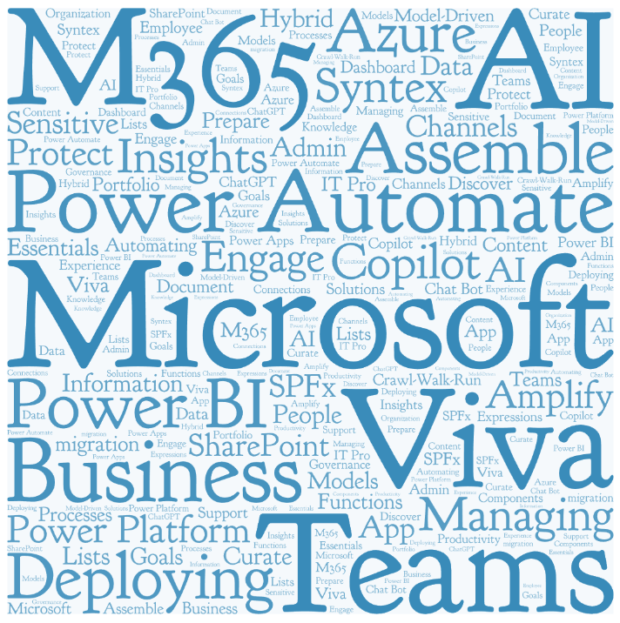
Our event this coming Saturday November 11th: It’s a day of free training on topics in, around, and tangential to Microsoft’s M365: Teams, SharePoint, Planner, OneDrive, Viva, Azure, Power Platform, and more. The word cloud above is from session titles that will be presented on Saturday.
10 rooms, 4 time slots, 34 sessions. In person only. No recordings or online availability. Come mix it up with folks from all over the Upper Midwest – organizations big and small. We’ll have donuts and pizza.
Free Content
A number of us just returned from 365EduCon Chicago – the most recent in a handful of larger conferences and education opportunities that can require a substantial investment from employers and attendees. Community events like Community Days and our M365 Twin Cities event are FREE or have nominal fees. Community Days events are fantastic opportunities to learn – for the cost of your time – and have other benefits as well.
Come and hear from many of the same presenters you’ll see at the larger events. Get the latest news on what’s coming, what’s been released, what’s changed, best practices, case studies, and more.
Access to Presenters
Do you have questions about a certain topic? Check the schedule to see what’s being presented and who’s going to be on-site presenting. Even if they’re not talking about your topic, they might be a SME (subject matter expert) that can answer questions about something you’re working on or stuck on.
Networking
It’s not just about building a network for when you make your next job hop. It’s about building a peer group for the job you’re in. Sharing findings, best practices, what works, what doesn’t, etc.
Talk to people. Seriously as good as the content will be, the best thing you can do is talk to folks. Get outside your comfort zone a bit.
As of today: closing in on 400 registrations which will likely yield about 250 folks on site the day of the event.
Socks and LEGO
Vendors and sponsors love to give stuff away. There’s always swag. 🙂 Socks are still all the rage – I don’t understand why – but they are. Stickers and can koozies, pens, and more. Come and check out the assortment.
Links and more reading
- Registration: https://M365TwinCitiesFall23.eventbrite.com
- Downloadable schedule: http://www.m365tc.com/Schedule-NOV2023.docx
- Online schedule (don’t forget opening and closing sessions): Community Days | M365 Twin Cities
- Our site: M365 Saturday – Twin Cities (m365tc.com)
- http://www.idubbs.com/blog/2023/community-events-connections/
- http://www.idubbs.com/blog/2023/community-events-local-reach/
- http://www.idubbs.com/blog/2023/community-events-find-your-context/