When using Power Apps to customize List forms, I’m a big fan of “About” screens as a way to give users more information. It’s so easy to spin up a page to communicate info that should be available to the user. At a recent event (TechCon Atlanta ’25) someone asked about a screen *before* the new item form. So, let’s look at that.
Without going too deep into potential business reasons here – maybe we need to make sure users know something (disclaimer, etc.) or see something (branding) – we want to have a form that is displayed *before* the new item form. A splash screen.
Before we add the new screen, let’s set up the New, Edit, and Display functionality. Plenty of documentation on how to do this, but we can look at this older (but still valid) Power Apps blog post about it. Once the forms and properties are stitched together, we can add our new pieces. Why do this? We might not want the splash screen for all applications… like when viewing or editing. We’ll stitch it up just for the NewItem for this example.
- Navigate to your List (SharePoint or Microsoft Lists)
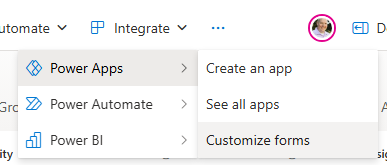
Note: If you’re building a solution others in your organization will be using, make sure you’re using a list NOT created in “My Lists”. The list should be in a SharePoint site. - Customize forms in Power Apps
- Configure the SharePointIntegration control as shown in the blog above.
- Add the new screen. Let’s call it “SplashScreen”

- Add some content to it. Maybe a logo image, disclaimer text, or whatever works for you.
- Add a button to navigate to the actual NewItem form. (OnSelect: Navigate(CreateScreen))

- Update the OnNew property of the SharePointIntegration control to not point to the NewItem form, but the new SplashScreen.
Set(SharePointFormMode, "CreateForm"); NewForm(CreateItemForm); Navigate(SplashScreen, ScreenTransition.None)
And there you go. That’s one way to do it. There are other approaches as well. Do what works for you.
Interesting little note:
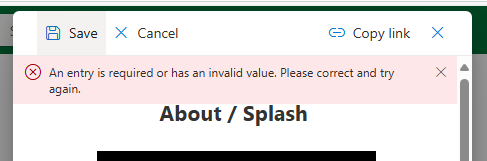
Back in SharePoint, while you’re on the splash screen, the Save/Cancel functionality – which is sort of a container for the Power App form – still functions as it should. If you try to Save it’ll fail because you haven’t filled in required fields like Title yet…