
Originally posted August 2024
Updated September 2025
EDIT: Copilot in-app editing was deprecated and removed January 2026. 🙁
Have you tried out Copilot (Preview) in Power Apps yet? Here’s a quick example of what you can do and try.
Note: I put the date in the title because this feature is currently in preview, is changing a *lot*, and will likely give you different results as time goes on.
My last post talked about creating an About screen in a Power App. It’s a pretty straightforward and beginner-level activity. Is it something we can automate or create a prompt for? Here’s what I experienced:
First, we’re in the Power Apps interface and using the Copilot icon in the upper right part of the screen.

Copilot opens on the right side of the screen and prompts are entered in the text window at the bottom. Click the arrow to submit the prompt.
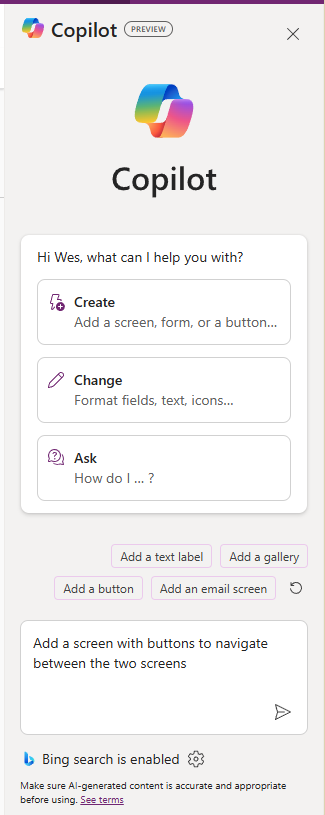
Now, what’s pretty cool is that Copilot goes ahead and tries to implement what you asked for. The output makes the changes to your app then reports on changes made with some explanations of its actions. Pretty slick. It also gives you the option to undo the changes that it made.
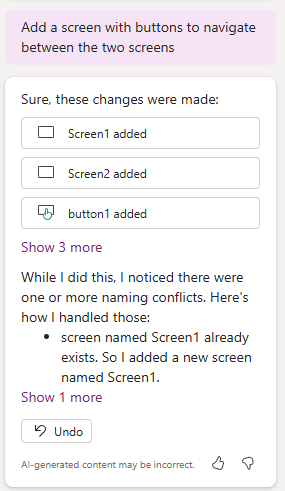
My attempt took 5 tries. I chose to undo each attempt until I got the one I wanted. The closest I got at the time (#5 below) was:
Add an “About” button to the bottom of FormScreen1 that navigates to a new screen with a “Back” button near the top of the form that navigates back to FormScreen1
The progression looked something like this:
| Prompt | Outcome notes |
| 1. Add a screen with buttons to navigate between the two screens | Added two new screens instead of adding only one. |
| 2. Add a button to FormScreen1 that navigates to a new screen with a button that navigates back to FormScreen1 | Better… |
| 3. Add a button named “About” to the bottom of FormScreen1 that navigates to a new screen with a button named “Back” to the top of the form that navigates back to FormScreen1 | Whoops, it named the buttons… didn’t change the text. I suppose this is good to know for better component creation… |
| 4. Add a button with Text “About” to the bottom of FormScreen1 that navigates to a new screen with a button with Text “Back” near the top of the form that navigates back to FormScreen1 | Copilot didn’t like this. |
| 5. Add an “About” button to the bottom of FormScreen1 that navigates to a new screen with a “Back” button near the top of the form that navigates back to FormScreen1 | Pretty close. It got most of the basics though left the About button at the top. |
| 6. Add an “About” button near the bottom of FormScreen1 that navigates to a new screen with a “Back” button near the top of the form that navigates back to FormScreen1 | (Updated post – added this row) Got it. Changed one word – “to” to “near” to get the button to the bottom of the original form. |
| 7. (Update 9/3/25) On FormScreen1, add an “About” button near the bottom right corner that navigates to a new screen with a “Back” button near the top of the form that navigates back to FormScreen1 | Previous version stopped placing “About” button in the right location. Got more specific. |
Now, why would we want to do work this way? It feels a bit like scripting to me. If I can find the right prompt, I can save it and use it in multiple apps or share it with others to get consistent results. The assumption here is that Copilot’s actions will settle down over time and be consistent. While in preview and frankly in relatively early development the outcomes will likely vary somewhat.
Random Note
Does anyone else think creating prompts feels like text-based adventure games from the 1980s? Two-word commands with a verb and a noun. Keep trying until you get the action you’re looking for. 😛
#CranstonManor
Edit / Update
Added row 6 to the table with a slightly better prompt.